Typically Targets are used as the recipients of a Marketing Campaign, your organisation knows very little about these individuals and they may be re-used for new Campaigns or deleted without any impact to the business. Your organisation will spend little resources on Targets and will usually be contacted en masse. Targets can be acquired from purchased email lists or gathered from trade shows your organisation has been present. The Targets module in SuiteCRM is used to store and manage information about these individuals.
Targets Actions
You can access the Targets actions from the Targets module menu drop down or via the Sidebar. The Targets actions are as follows:
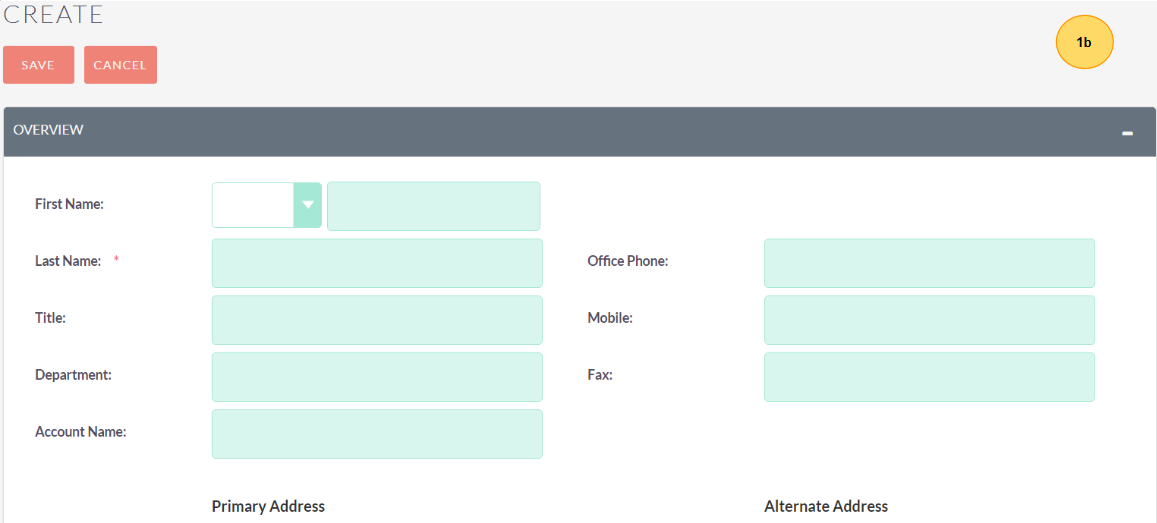


Create Target – A new form is opened in Edit View to allow you to create a new Target record.
View Targets – Redirects you to the List View for the Targets module. This allows you to search and list Target records.
Import Targets – Redirects you will be taken to the Import Wizard for the Targets module.


To search for a Target, use the Search section.
To sort records on the Targets List View, click any column title which is sortable. This will sort the column either ascending or descending.
To send Email, Click the email button in Bulk Option Drop Down Menu.To update some or all the Targets on the List View, use the Mass Update panel as described in the Mass Updating Records section.
To add the Targets to Target List, Click “Add to Target List” button in Bulk Option Drop Down Menu.
For a detailed guide on importing and exporting Targets, use the Importing Records and Exporting Records section.
To View the Map, Click the Map button in Bulk Option Drop Down Menu.
To delete one or multiple Targets, you can select multiple records from the List View and click delete.
To view the details of a Target, click the Target Name in the List View. This will open the record in Detail View.
To edit the Target details, click Edit icon within the List View or click the edit button on the Detail View, make the necessary changes, and click Save.
To duplicate a Target, you can click the Duplicate button on the Detail View and then save the duplicate record.
To delete a Target from the Detail View by clicking the Delete button. For a more detailed guide on deleting records.
To convert Target to Leads, Click “Convert Target” button in Actions Drop Down Menu.
To Manage Subscriptions, Select the Manage “Subscriptions” in Actions Drop Down Menu.
To track all changes to audited fields, in the Target record, you can click the View Change Log button on the Target’s Detail View or Edit View.