Merging Records
You can merge records from the List View of any module, given this option is made available to you, or via the Detail View if you follow the ‘Find Duplicates’ process.
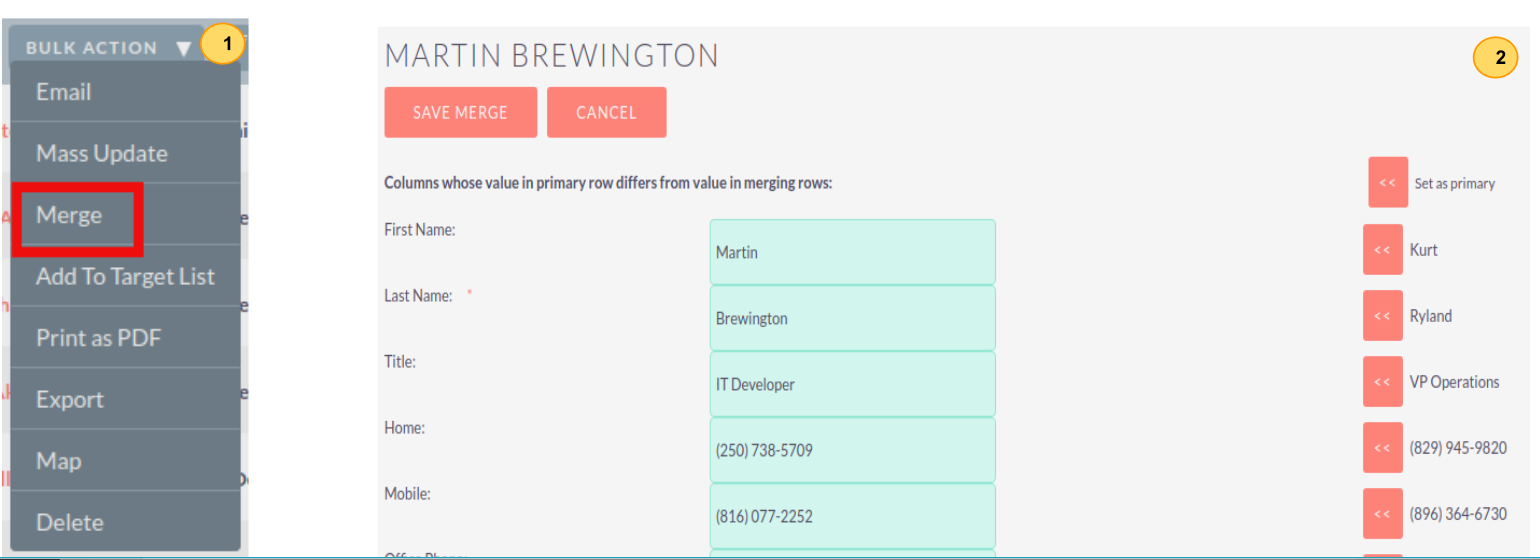


- To merge records, you have to check the records in the List View and then select the ‘Merge’ option from the dropdown menu.
- Once you have clicked on the ‘Merge’ option, you will be presented with a merge screen. This will show the primary record and the duplicates that you wish to merge with that primary record.
- You can select which record is primary using the ‘Set as primary’ button on the right of the merge view. You can move data from the duplicate records to the primary record using the ‘<<‘ buttons. In this example, we have moved the First Name and Last Name from the duplicate record to the primary record.
- Once you have made the required changes on the merge screen, you can click ‘Save Merge’ or ‘Cancel’. Clicking cancel will discard the merge changes and will revert you to the List View for that module. Clicking ‘Save Merge’ will continue the Merge process and will prompt you to inform you that the duplicate record will be deleted.
- In this example, we have moved the First Name and Last Name from the duplicate record to the primary record.
- You can click ‘OK’ or ‘Cancel’. Clicking Cancel will discard the merge changes and will revert you to the List View for that module. Clicking ‘OK’ will save the merge and will redirect you to the Detail View for the merged record.
As can be seen from the example, the merge has completed successfully. The First Name and Last Name have been updated, and all other data has been retained.