In SuiteCRM a Lead is an unqualified contact usually generated from some form of marketing related event, for example it could be a person that has filled out a form on your website or someone that you met at a trade show and you are not sure yet if they have buying authority. Once a Lead is qualified and converted then it can be split into three parts; a Contact once you have established ‘Who’ it is, an Account when you know ‘Where’ they work and an Opportunity once it is known ‘What’ they might buy.
You can access the Leads actions from the Leads module menu drop down or via the Sidebar. The Leads actions are as follows:
Once enough information is gathered about a Lead, then the Lead can be progressed to the next Sales stage and the Lead can be converted into a Contact, Account and Opportunity. The way in which a Lead is converted depends on how the System Administrator has set up SuiteCRM. To convert a Lead with the default SuiteCRM setup you have to click on an individual Lead record to access the Detail View of the Lead and click on the arrow next to the Other button, then click on ‘Convert Lead’ from the drop-down menu shown in the image below:
Once you have clicked on ‘Convert Lead’ button then you will be taken to the Convert Lead page.
On this page you will be able to Create or Select Contact:
By deselecting the checkbox next to ‘Create Contact’ you will be able to associate the Lead to an existing Contact. However, in most cases when converting a Lead there will be no existing Contact. Make sure the Create Contact checkbox is selected. Some of the fields will automatically be populated using the Lead information. Fill out the remaining relevant fields and move to the next Stage below:

To create an Account from a converted Lead you will follow the same process as with a Contact, some information will populate from the Lead automatically, just complete the rest.
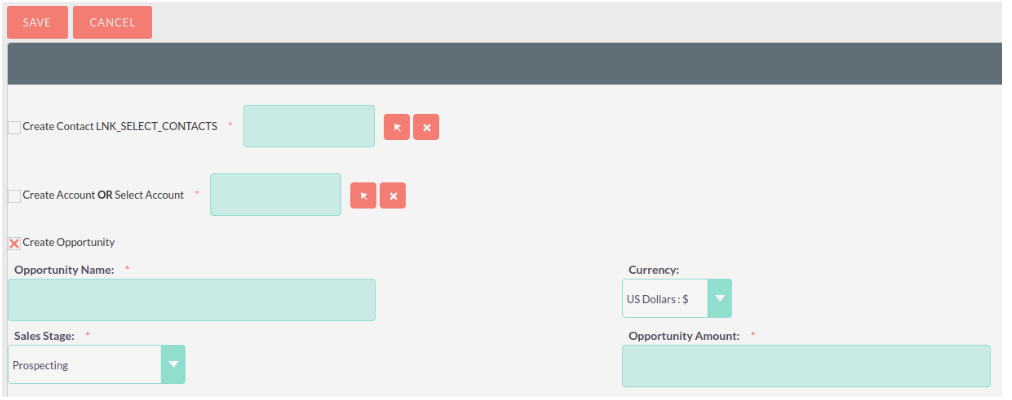
To create an Opportunity from a converted Lead you will follow the same process as with a Contact, some information will populate from the Lead automatically, just complete the rest.
Other records can be created when converting a Lead in the same way as Contacts/Accounts and Opportunities.
After you have completed the relevant sections click the Save button to confirm the changes.
When converting a Lead SuiteCRM will automatically check for any duplicate records and will return a warning if a matching record is found.
If you find that the duplicate warning is not valid and you still wish to create a new record, then click the Create button. Otherwise if you decide that the warning is correct and the record does already exist in the CRM then you should click on the Select button.