Creating an Invoice
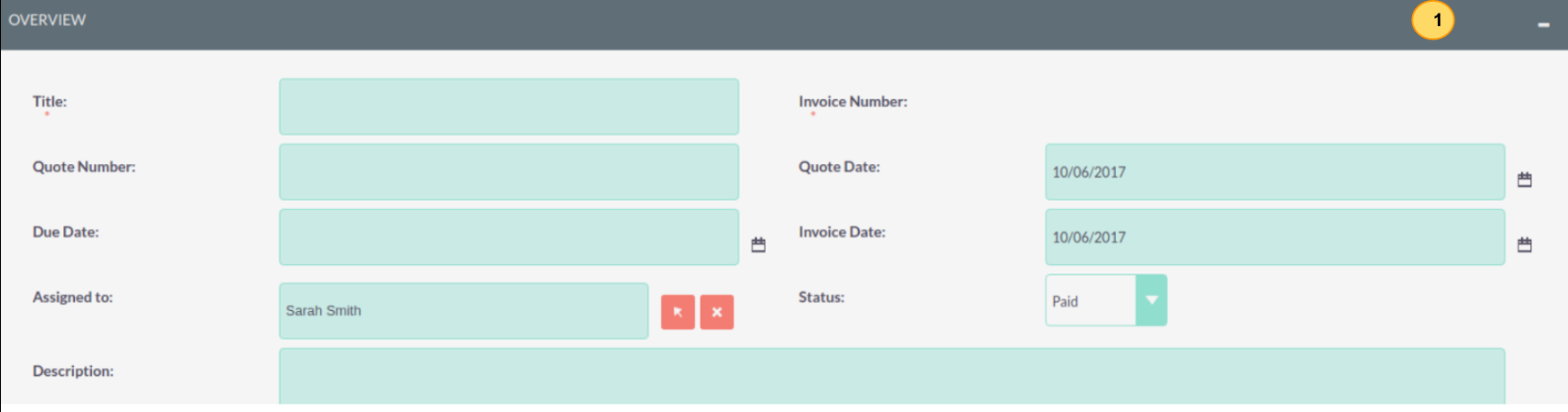
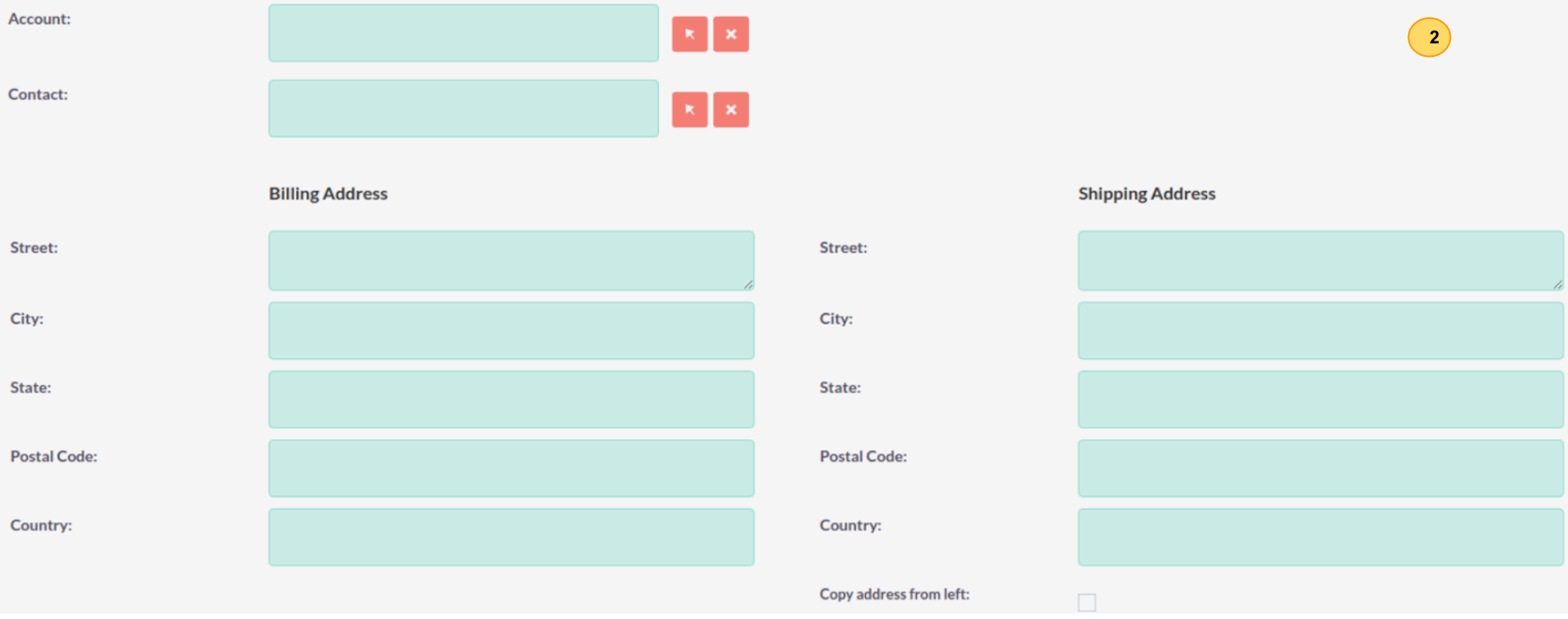
Groups and Line Items
AOS allows users to add Groups and Line Items to Invoices. This is completed in the exact same way as Quotes. Please refer to Quotes section for details on how to create Groups and Line Items.
Sending Invoices
To output an Invoice you can select one of following three buttons from the Invoice Detail View.
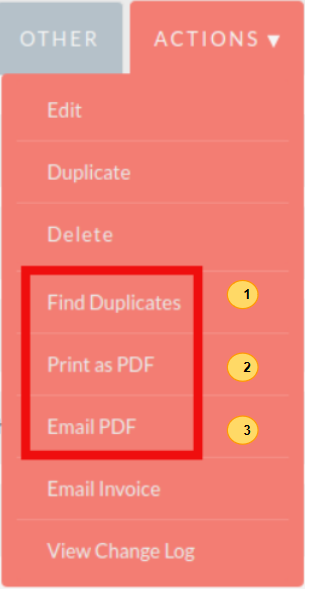
AOS provides users with three methods of sending Invoices:
Print as PDF – Allows users to select a template and download or save a PDF of the Invoice.
Email PDF – Allows users to select a template then directs you to the SuiteCRM email client ‘Compose’ screen. The Invoice PDF will be attached to email and the email will be addressed to the related Contact of the Invoice. This allows user to fill out the email body.
Email Invoice – This directs you to the SuiteCRM email client ‘Compose’ screen. The email will be addressed to the related Contact of the Invoice. There will be no attachment and the Invoice will be displayed within the body of the email.