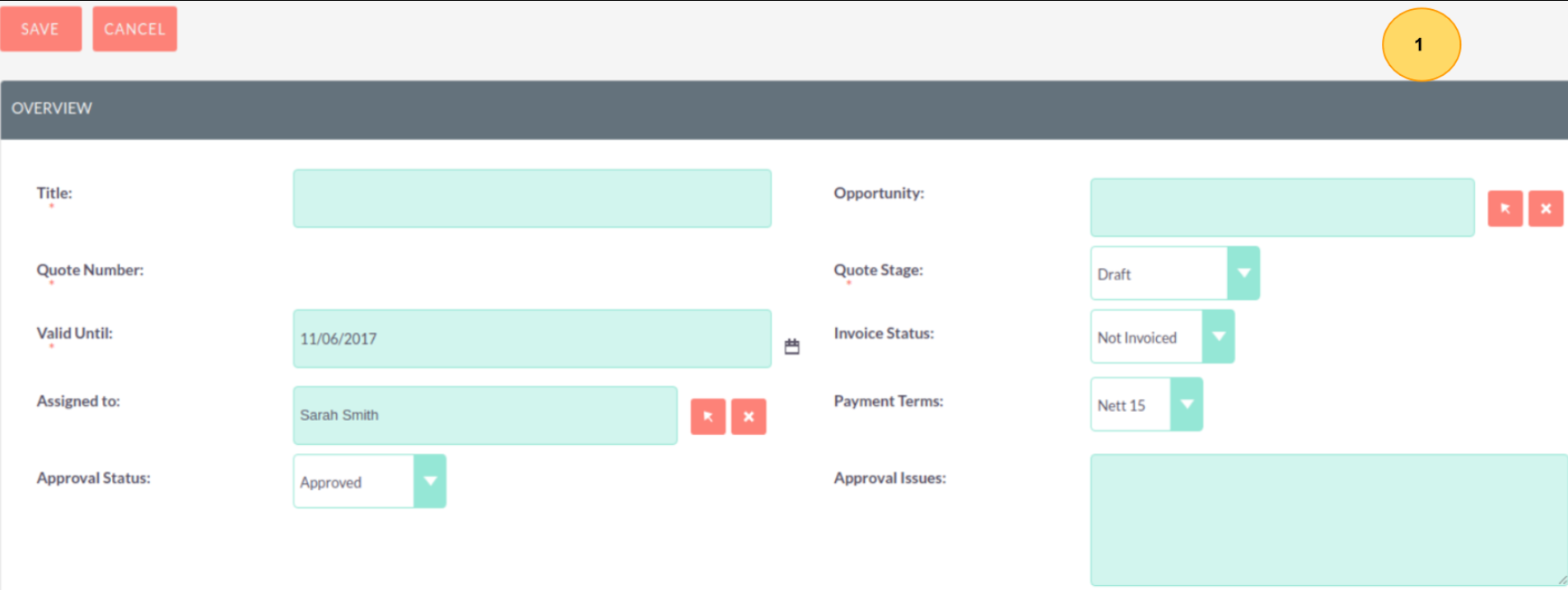
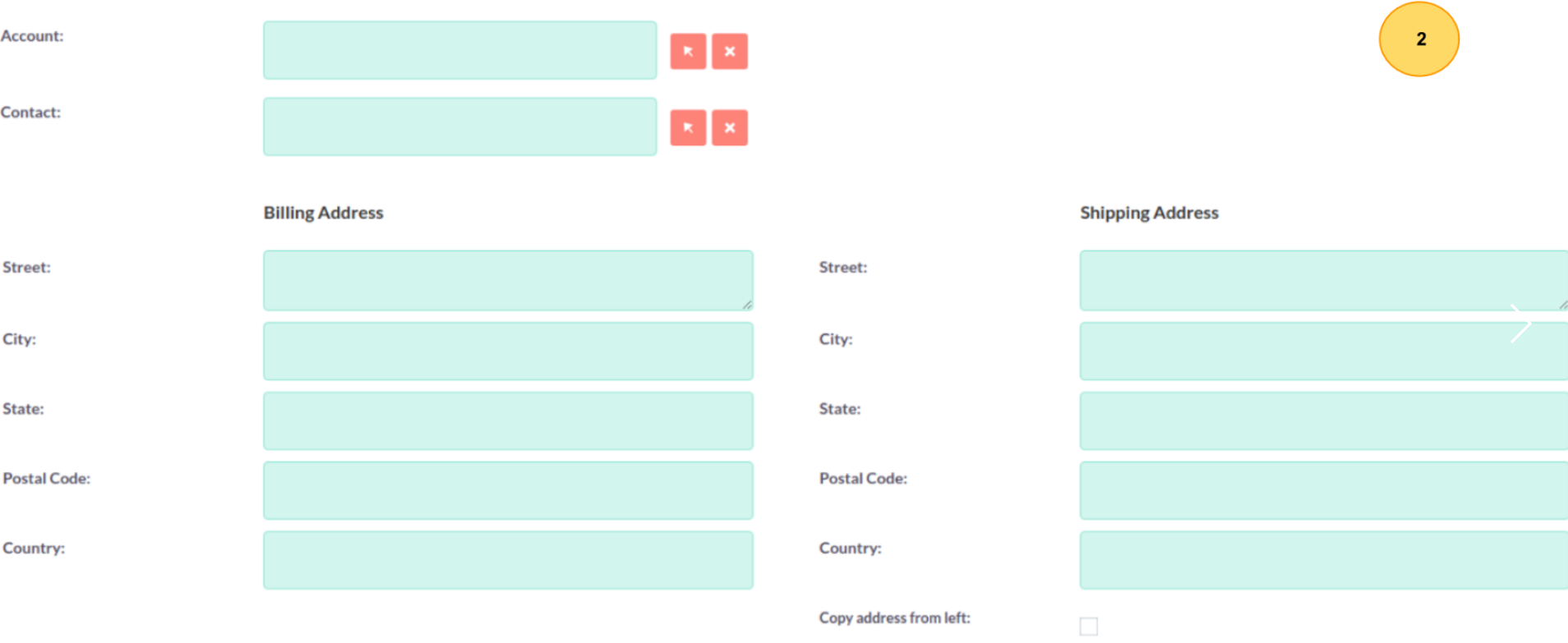
The process for Creating a Quote is described in below sections.
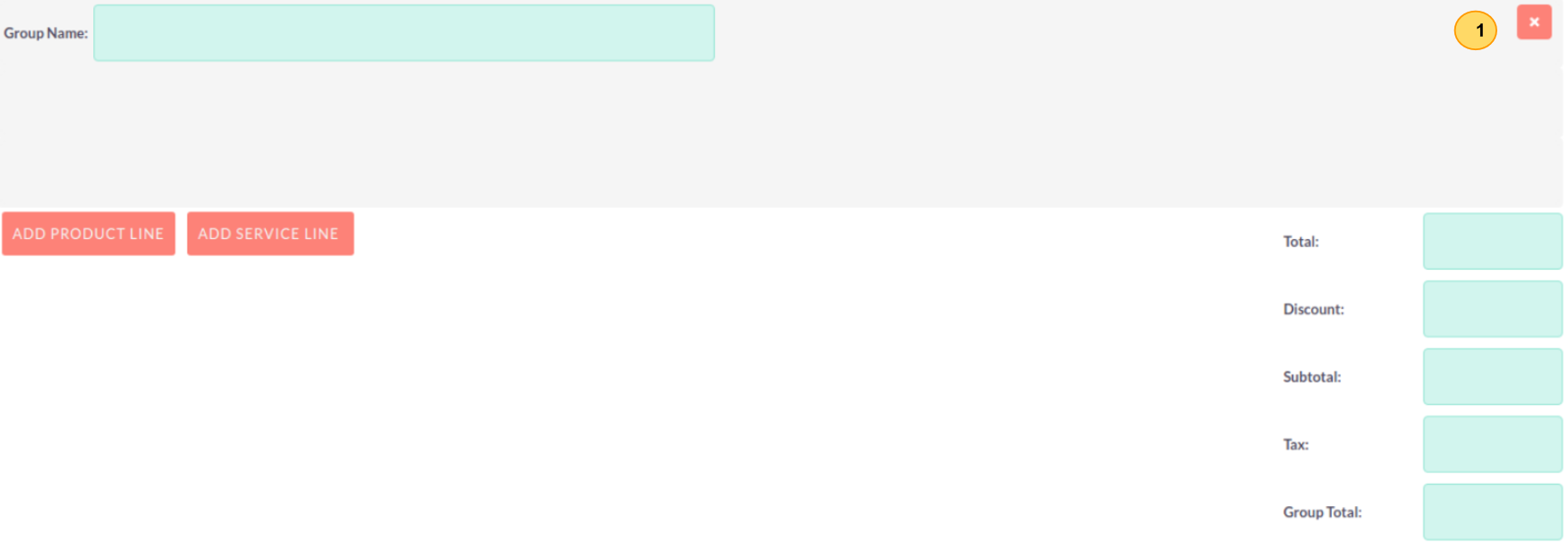
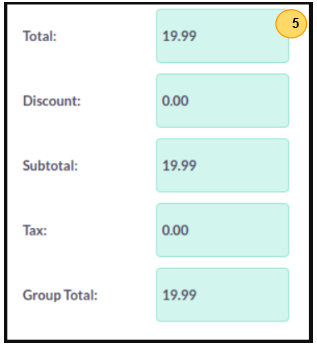
The third panel allows users to specify the Quote Groups, Line Items and the Currency. A Group is a collection of Line Items with its own Group Total. A Line Item can be a Product Line or a Service Line. To add a Quote Group, click the ‘Add Group’ button.Note: Add Group will be displayed if “Enable Line Item groups” is selected in Admin.
This will display the Group, allowing you to insert a Group Name and add a Product Line or Service Line. It will also display the Group Totals.
To add a Product Line, click the ‘Add Product Line’ button. This will allow users to quote for Products from the Products module.
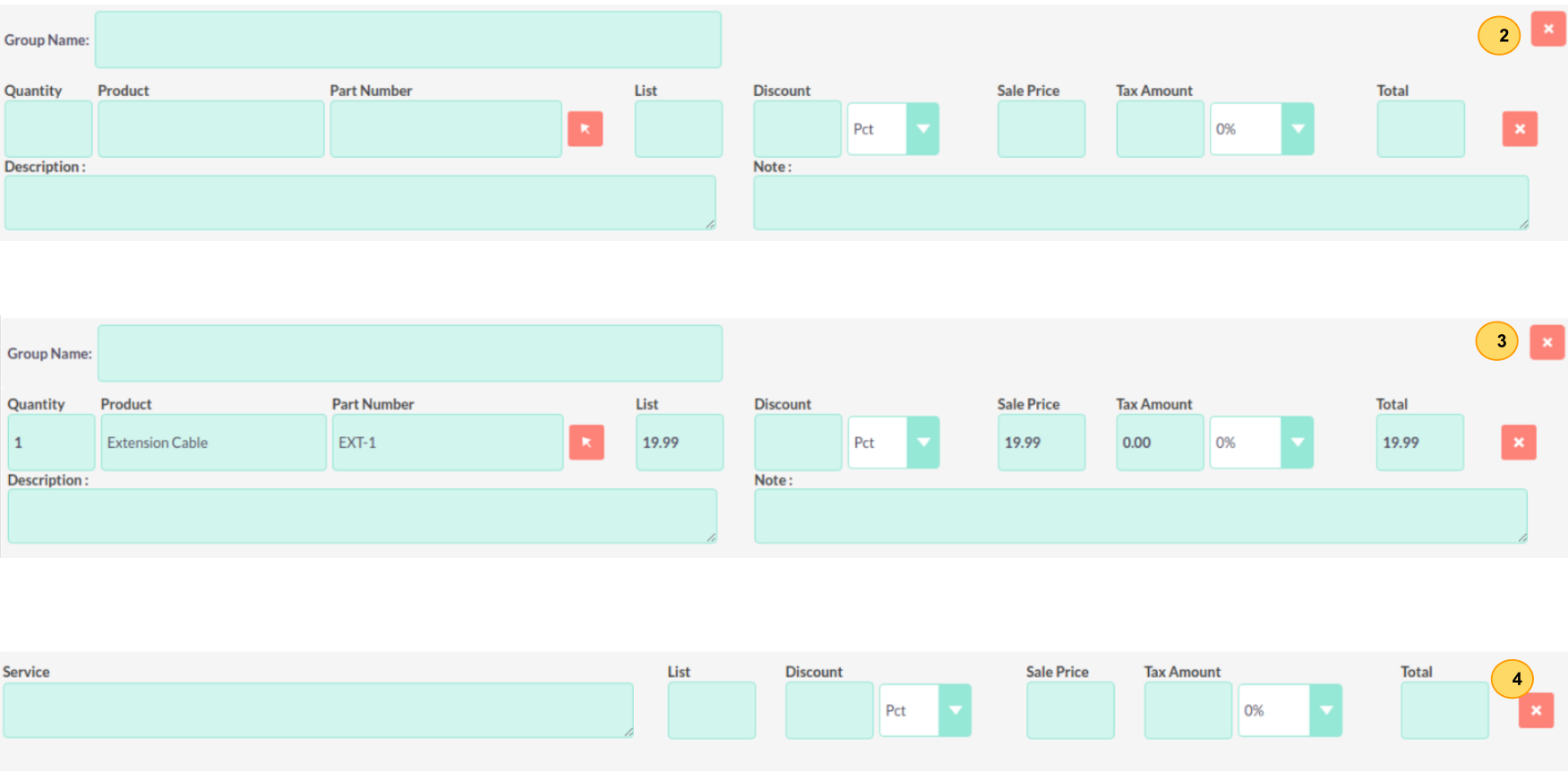
To select a Product, you can start typing in the Product or Part Number field which will provide a list of results similar to any relate field. Alternatively click the arrow button next to the Part Number field. This will display a pop-up window allowing you to select from a list of Products.
Once you have selected a Product, the List, Sale Price and Total will populate automatically. You can change the Quality, add Discounts (Percentage or Amount) and increase the Tax percentage. These will alter the Sale Price, Total Price and Group Total fields. To add a Service Line, click the ‘Add Service Line’ button. This will allow users to quote for Services.
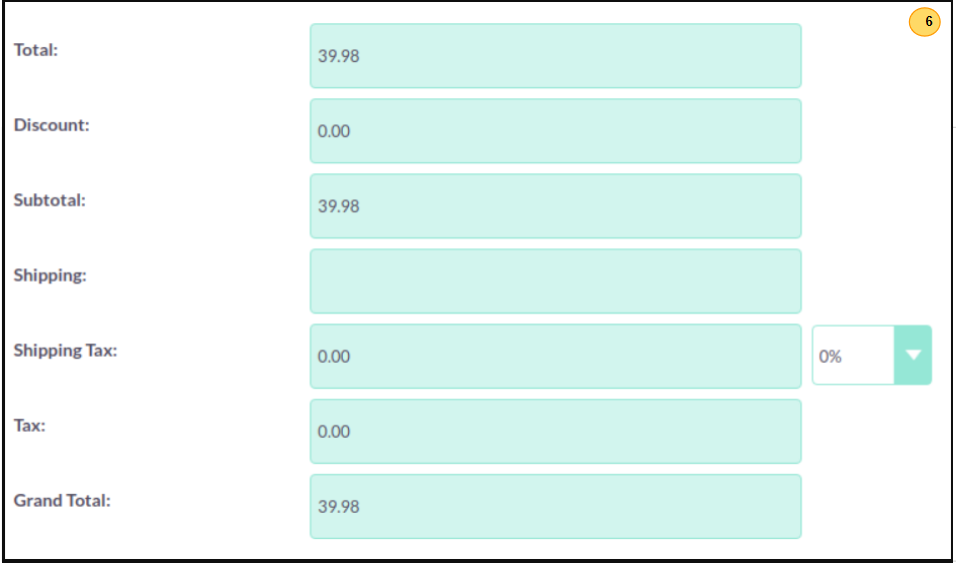
For Service Lines, you must specify the List price. This will populate the Sale Price. Tax and Discounts can be added similarly to the Product Line. AOS will keep a Grand Total for each Group.
AOS will also keep a Grand Total for all Groups combined.
The Shipping field allows you to add a shipping cost. The Shipping Tax field allows you to add tax to this value. Once the Quote has been compiled, click ‘Save’ to save the Quote.
Line Items without Groups
Creating Quotes without Groups is very similar to creating Quotes with Groups. The only difference is you do not have to click ‘Add Group’. You simply ‘Add Product Line’ and ‘Add Service Line’ to the quote. Without Groups you are cannot see the Group Total fields. You will only see the Grand Total fields.