Creating Templates
AOS allows users to generate PDF documents and merge data from SuiteCRM modules. You must however create a PDF template first.
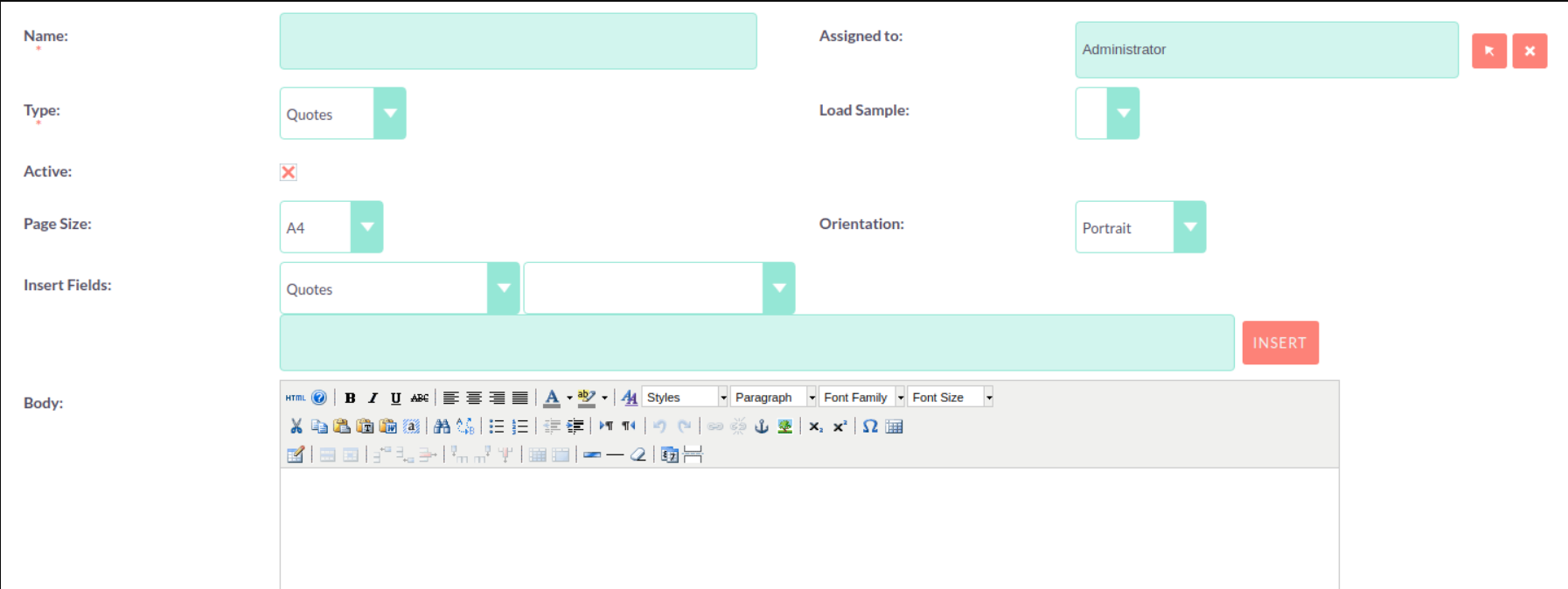
This module provides a WYSIWYG interface to create dynamic PDF templates. You must select a Type. This is the module you are building the PDF Template for. By default the modules you can select are: Quotes Invoices Accounts Contacts Leads
System Administrator users can extend this list by editing the ‘pdf_template_type_dom’ using the drop down editor functionality. Please note that the drop down ‘Item Name’ must be the name of the module directory.
To insert fields into the Body of the template users will first select a module. This will be the either the same module as the Type or a related module to the Type module. This is selected using the first drop down on the Insert Fields row.
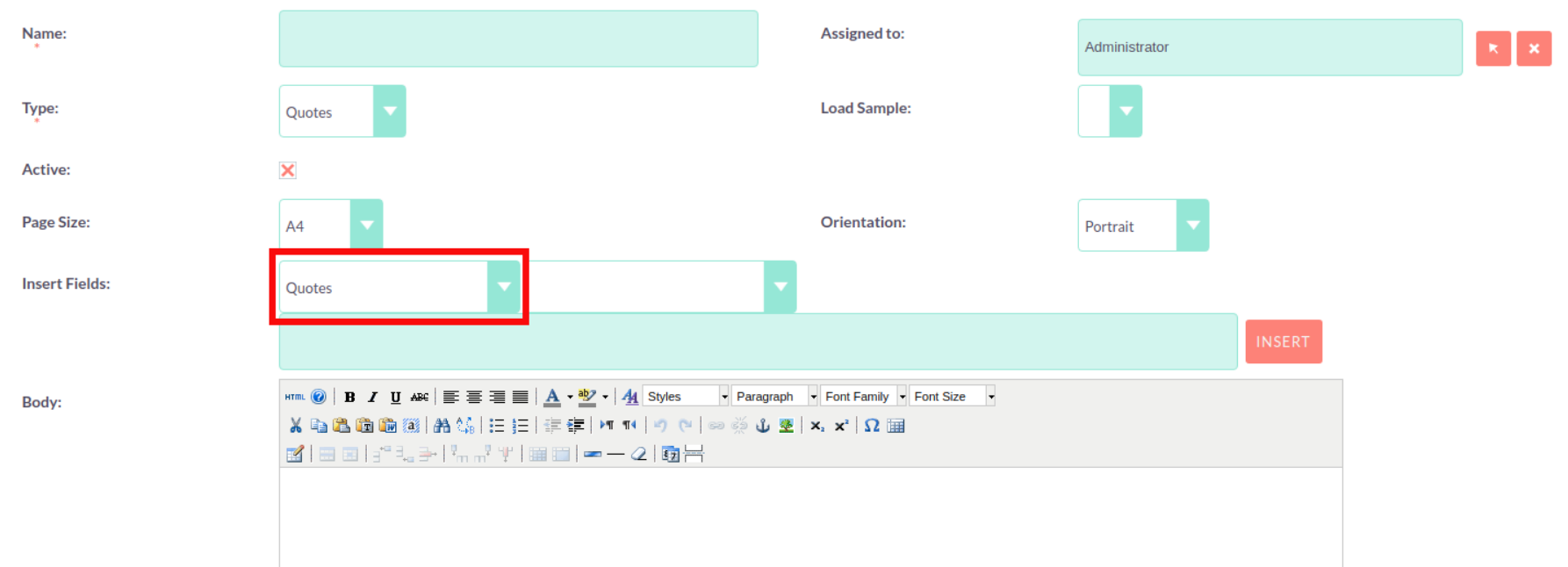
This will populate the second drop down with all the fields found within that module. Once you have selected the field you wish to insert, the text field will populate with the field variable name. Click ‘Insert’ to place this field into the Body of the template. If the Active check box is selected then users will be able to generate PDFs from this template. If it is not selected you will not.
Loading Samples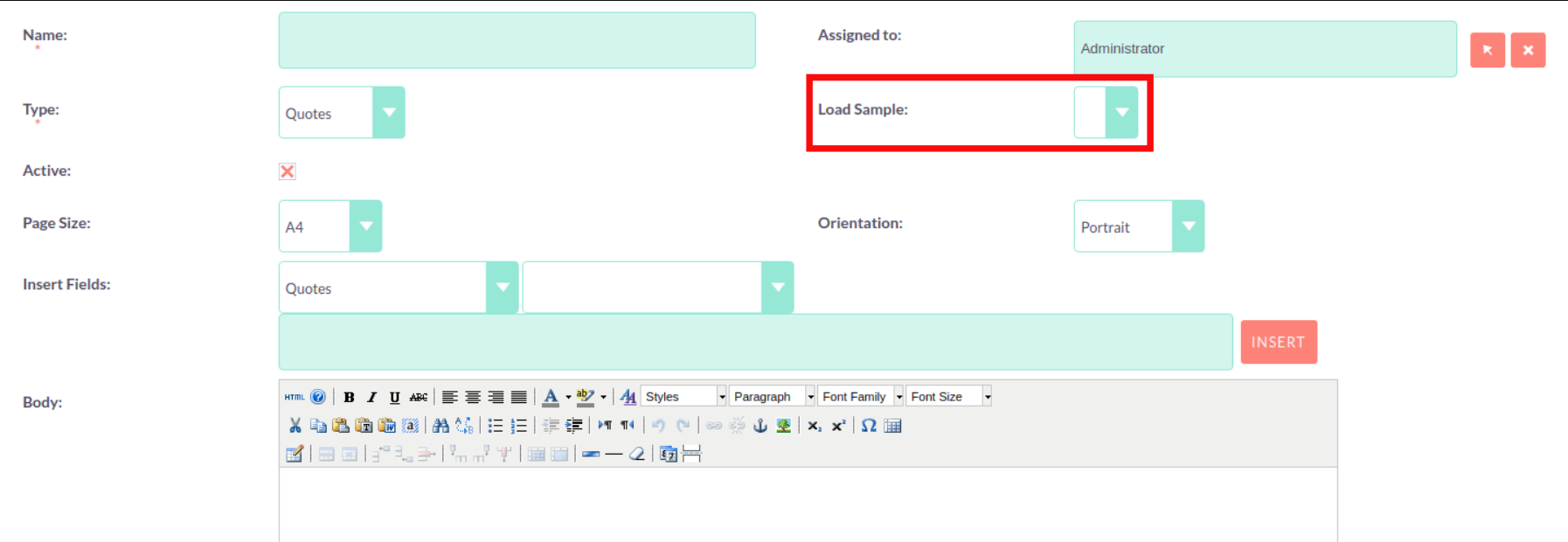
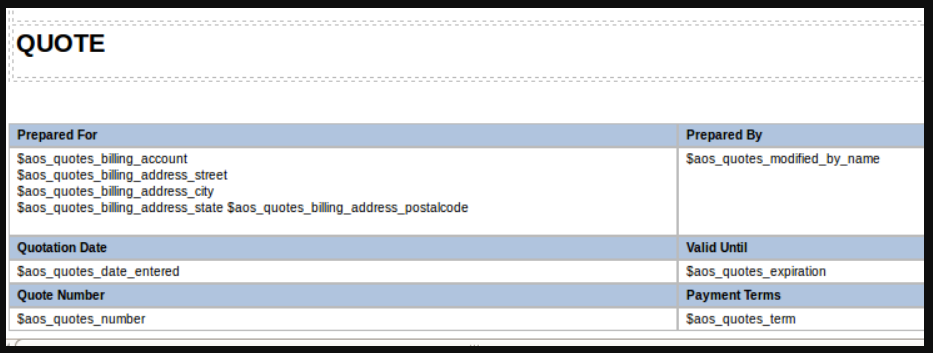
AOS comes with seven pre-defined PDF templates to help you create your own. These can be loaded by selecting the appropriate template from the Load Sample drop down list.
Line Items
When using a sample to create a template for Quotes or Invoices the Line Items are formatted within a table. You can change the fields found in this table as well as add or remove columns. Please note that if you are creating the template from scratch you must format the Line Items section as a table.

At the bottom of the PDF Template Edit View, you can specify the margin width for the PDF output.

Header and Footer
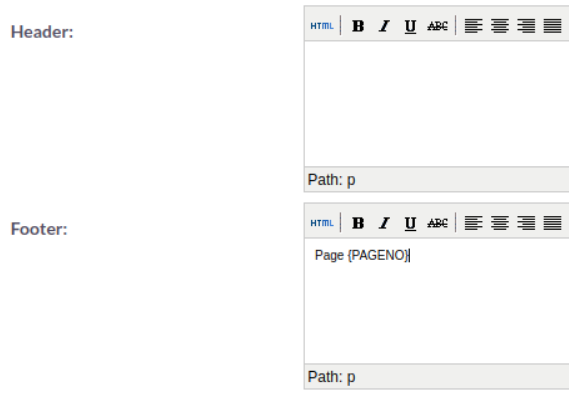
Within the PDF Templates Edit View, you can also define a Header and a Footer for your templates. These can be completed using the Header and Footer text areas found below the Body text area.
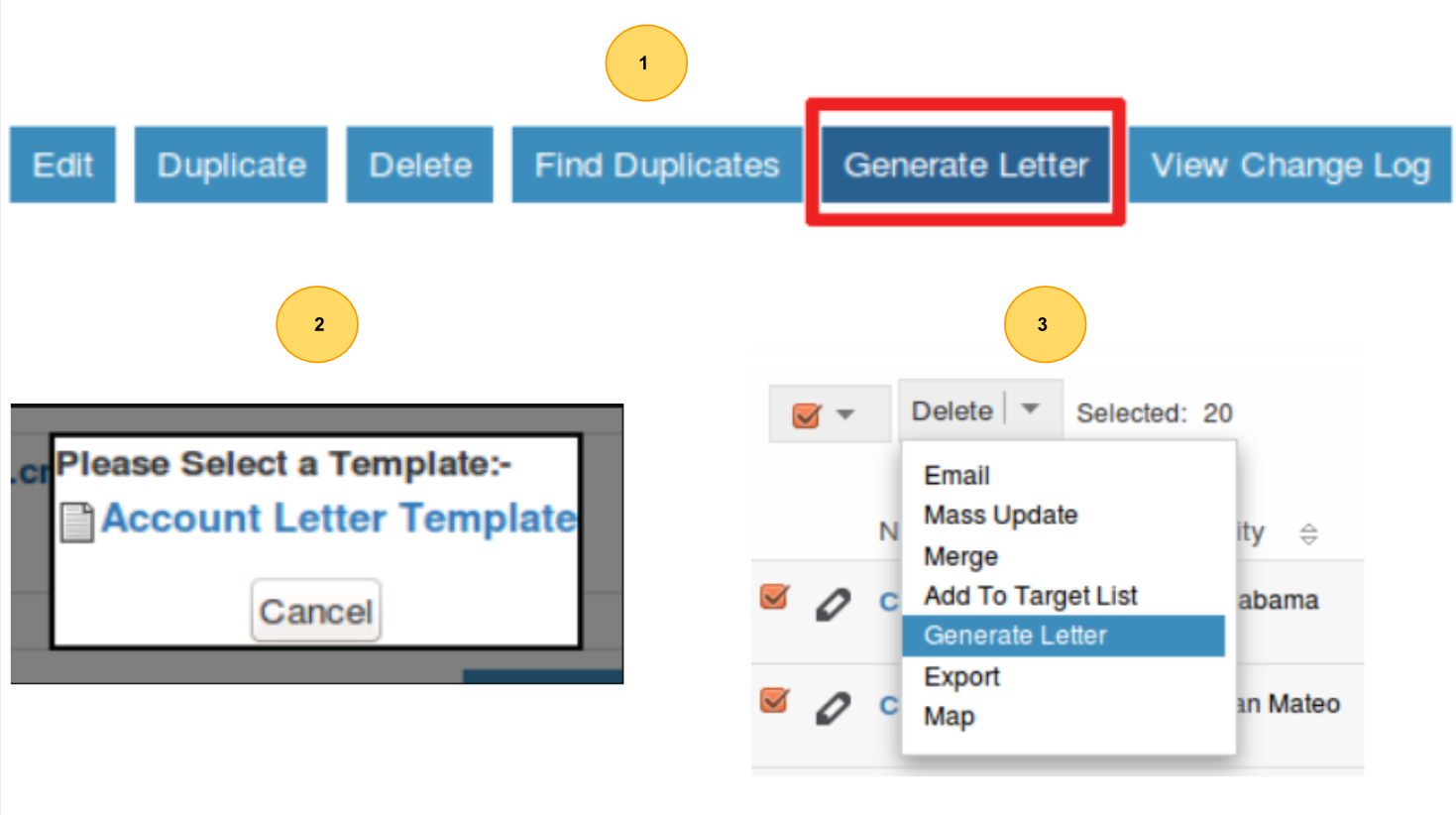
You can generate PDF documents for Accounts, Contacts and Leads using the Generate Letter functionality.
Clicking the ‘Generate Letter’ button found on these modules Detail View will prompt a pop-up asking to select a template.
The template selector pop-up will show all the active templates which have the same Type as the module of the record. Clicking the template name will generate a PDF document with date populated from the record and it’s related records. The Generate Letter functionality can also be actioned from the List View. This allows you to select multiple records and click the ‘Generate Letter’ button within the List View action menu.