The Notes module in SuiteCRM can be used to keep a record of any comments, observations or explanations that a User may have relating internally to their organisation or relating to another SuiteCRM record such as an Account, Contact, Lead or many more. Notes are also used to keep record of interactions with Customers regarding Cases and Bugs.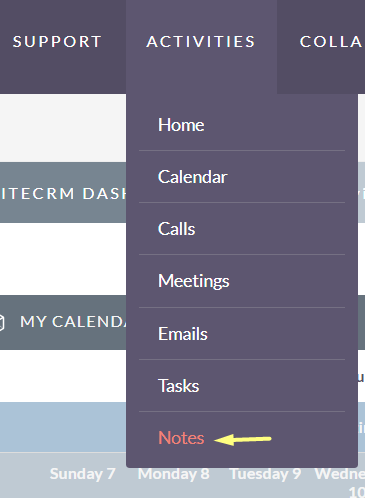
Notes Actions
You can access the Notes actions from the Notes module menu drop down or via the Sidebar. The Notes actions are as follows: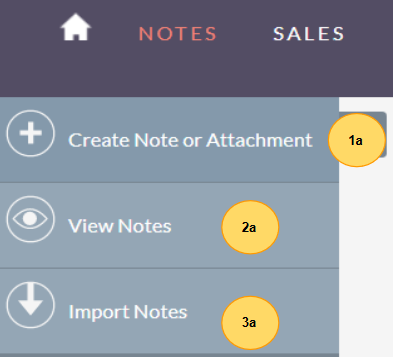
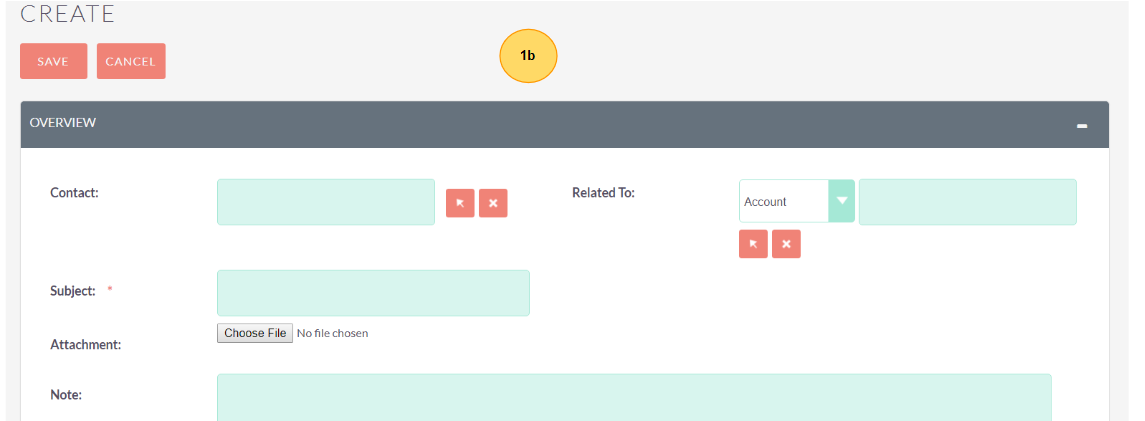
Create Note or Attachment – A new form is opened in Edit View to allow you to create a new Note record (with attachment).
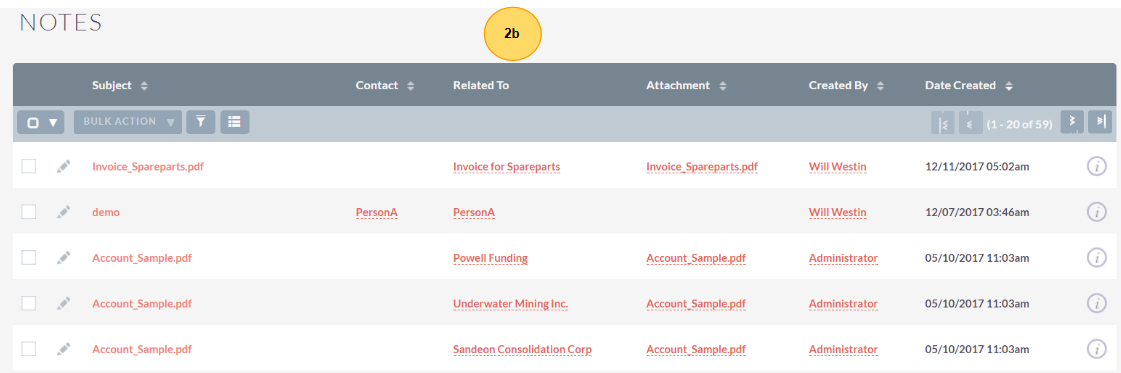
View Notes – Redirects you to the List View for the Notes module. This allows you to search and list Note records.
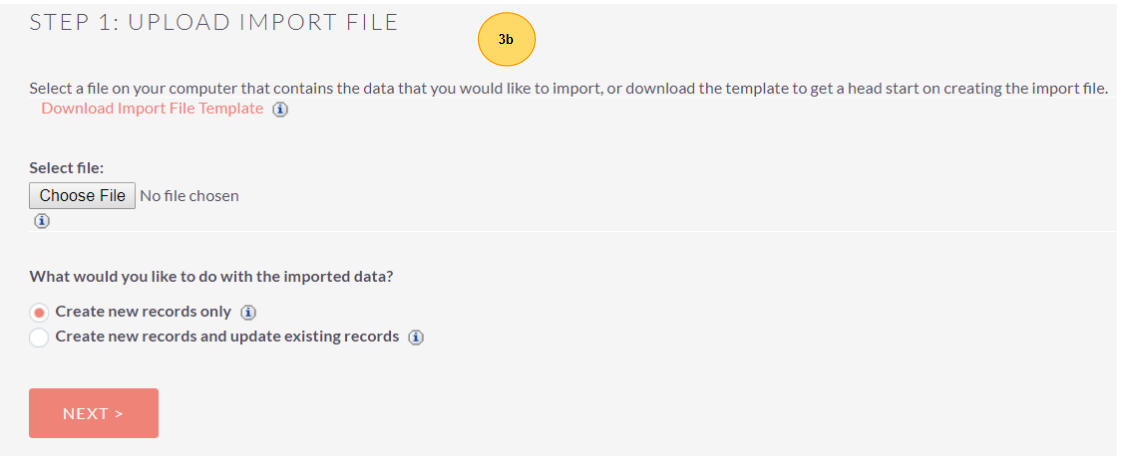
Import Notes – Redirects you will be taken to the Import Wizard for the Notes module.
Managing Notes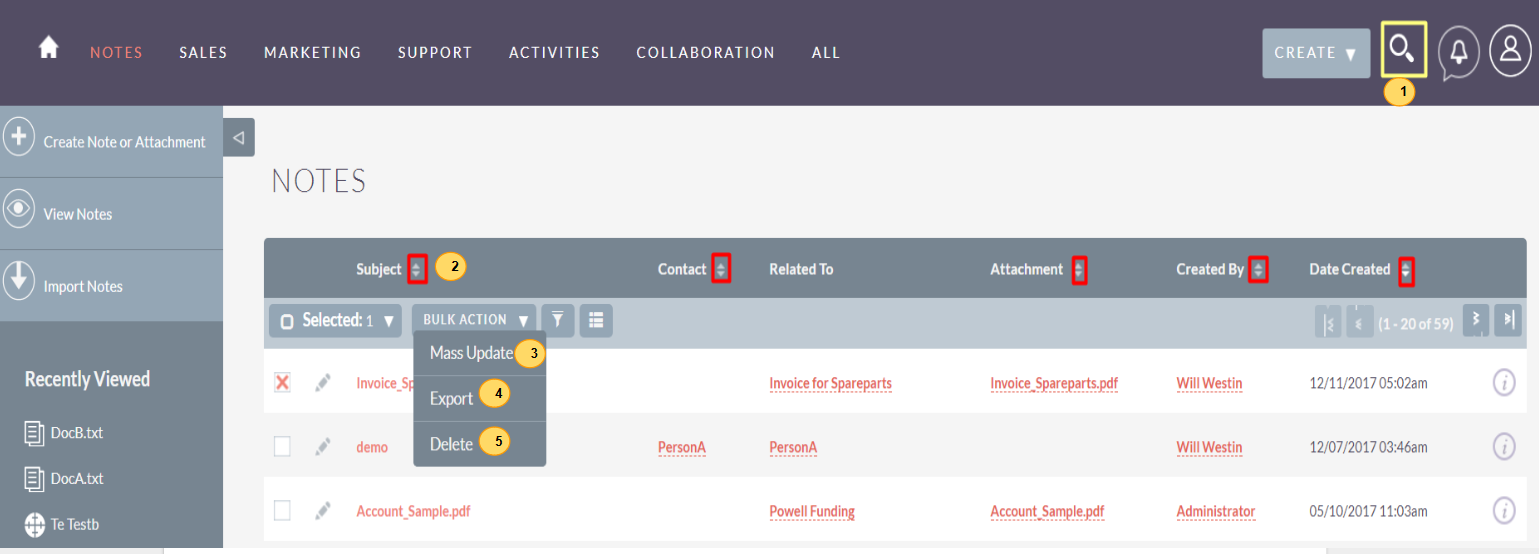
To search for a Note, use the Search section.
To sort records on the Notes List View, click any column title which is sortable. This will sort the column either ascending or descending.
To update some or all the Notes on the List View, use the Mass Update panel as described in the Mass Updating Records section.
For a detailed guide on importing and exporting Notes, use the Importing Records and Exporting Records section.
For a detailed guide on importing and exporting Notes, use the Importing Records and Exporting Records section.
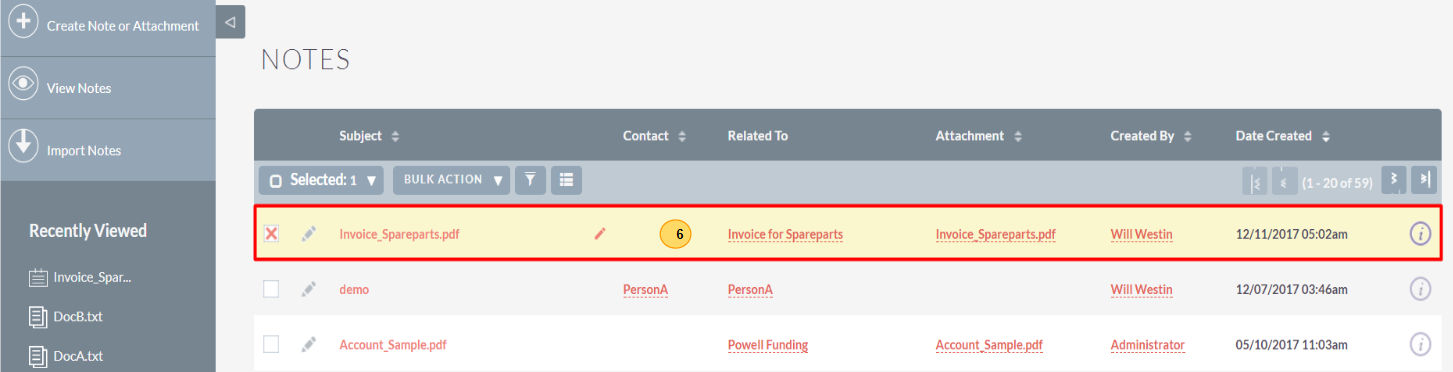
To view the details of a Note, click the Note Subject in the List View. This will open the record in Detail View.
To edit the Note details, click Edit icon within the List View or click the edit button on the Detail View, make the necessary changes, and click Save.
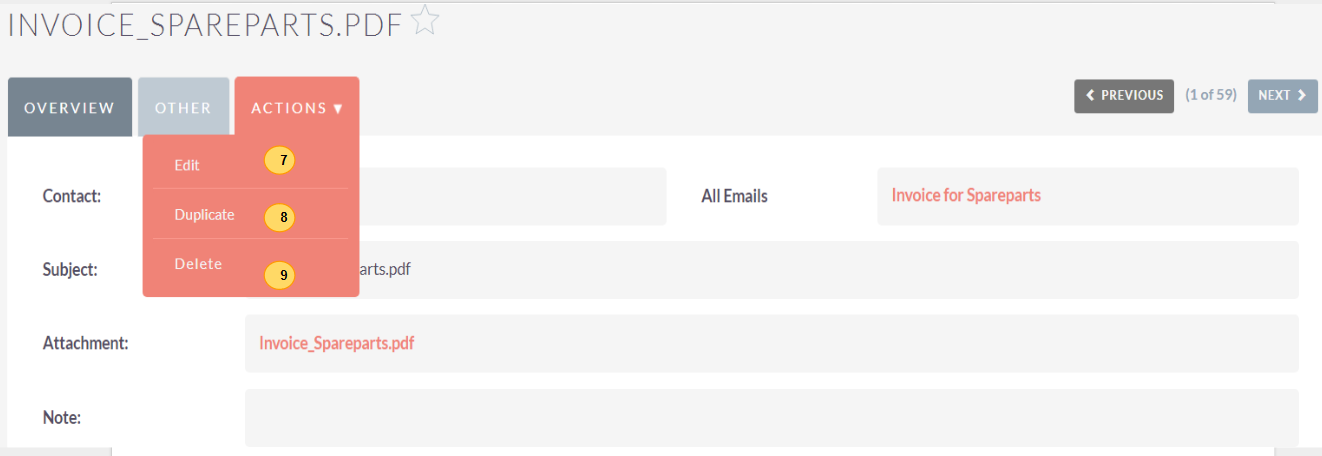
To duplicate a Note, you can click the Duplicate button on the Detail View and then save the duplicate record.
You can also delete a Note from the Detail View by clicking the Delete button. For a more detailed guide on deleting records, use the Deleting Records section.
To track all changes to audited fields, in the Note record, you can click the View Change Log button on the Note’s Detail View or Edit View.